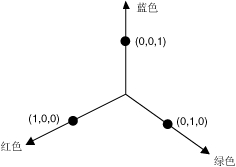
在四维颜色空间中进行的旋转难于可视化。 可通过固定一种颜色分量以便使旋转可视化。 假设我们同意将 alpha 分量固定在 1(完全不透明), 则可用红色、绿色和蓝色的轴形象地表示三维颜色空间,如下面的插图所示。

xuenhua’s 站点

在四维颜色空间中进行的旋转难于可视化。 可通过固定一种颜色分量以便使旋转可视化。 假设我们同意将 alpha 分量固定在 1(完全不透明), 则可用红色、绿色和蓝色的轴形象地表示三维颜色空间,如下面的插图所示。
缩放变换是指用一个数字与这四个颜色分量中的一个或多个相乘。 下表给出表示缩放的颜色矩阵项。
继续阅读“使用矩阵转换来调整颜色”全局变换是应用于由给定的 Graphics 对象绘制的每个项目的变换。 与此相反,局部变换则是应用于要绘制的特定项目的变换。
全局变换
若要创建全局变换,请构造 Graphics 对象,再操作其 Transform 属性。 Transform 属性是 Matrix 对象,因此,它能够保存仿射变换的任何序列。 存储在 Transform 属性中的变换被称为世界变换。 Graphics 类提供了几个构建复合世界变换的方法:MultiplyTransform、RotateTransform、ScaleTransform 和 TranslateTransform。 下面的示例绘制了两次椭圆:一次在创建世界变换之前,一次在创建世界变换之后。 变换首先在 y 方向上缩放 0.5 倍,再在 x 方向平移 50 个单位,然后旋转 30 度。
C#
myGraphics.DrawEllipse(myPen, 0, 0, 100, 50);
myGraphics.ScaleTransform(1, 0.5f);
myGraphics.TranslateTransform(50, 0, MatrixOrder.Append);
myGraphics.RotateTransform(30, MatrixOrder.Append);
myGraphics.DrawEllipse(myPen, 0, 0, 100, 50);
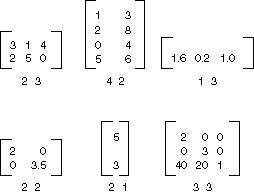
下图显示了变换中涉及的矩阵。

| 在前面的示例中,椭圆围绕坐标系的原点旋转。原点位于工作区的左上角。 与椭圆围绕其自身中心旋转相比,这样会产生不同的结果。 |
局部变换
局部变换应用于要绘制的特定项目。 例如,GraphicsPath 对象具有 Transform 方法,可用来对该路径的数据点进行变换。 下面的示例绘制了一个没有变换的矩形以及一个有旋转变换的路径。 (假定没有世界变换)。
C#
Matrix myMatrix = new Matrix();
myMatrix.Rotate(45);
myGraphicsPath.Transform(myMatrix);
myGraphics.DrawRectangle(myPen, 10, 10, 100, 50);
myGraphics.DrawPath(myPen, myGraphicsPath);
世界变换可与局部变换合并,以得到多种结果。 例如,世界变换可用于修正坐标系统,而局部变换可用于旋转和缩放在新坐标系统上绘制的对象。
假定您需要原点距工作区左边缘 200 像素、距工作区顶部 150 像素的坐标系统。 此外,假定您需要的度量单位是像素,且 x 轴指向右方,y 轴指向上方。 默认的坐标系统是 y 轴指向下方,因此您需要执行绕水平坐标轴的反射。 下图显示了这样的矩阵反射。

下一步,假定您需要执行一个向右 200 个单位、向下 150 个单位的平移。
下面的示例通过设置 Graphics 对象的世界变换,建立前面刚刚描述过的坐标系统。
C#
Matrix myMatrix = new Matrix(1, 0, 0, -1, 0, 0);
myGraphics.Transform = myMatrix;
myGraphics.TranslateTransform(200, 150, MatrixOrder.Append);
下面的代码(置于前面示例的结尾处)创建了由一个单独矩形组成的路径,该矩形的左下角在新坐标系统的原点。 矩形经过两次填充:一次不使用局部变换,一次使用局部变换。 局部变换包括在水平方向上缩放 2 倍,然后再旋转 30 度。
C#
// Create the path.
GraphicsPath myGraphicsPath = new GraphicsPath();
Rectangle myRectangle = new Rectangle(0, 0, 60, 60);
myGraphicsPath.AddRectangle(myRectangle);
// Fill the path on the new coordinate system.
// No local transformation
myGraphics.FillPath(mySolidBrush1, myGraphicsPath);
// Set the local transformation of the GraphicsPath object.
Matrix myPathMatrix = new Matrix();
myPathMatrix.Scale(2, 1);
myPathMatrix.Rotate(30, MatrixOrder.Append);
myGraphicsPath.Transform(myPathMatrix);
// Fill the transformed path on the new coordinate system.
myGraphics.FillPath(mySolidBrush2, myGraphicsPath);
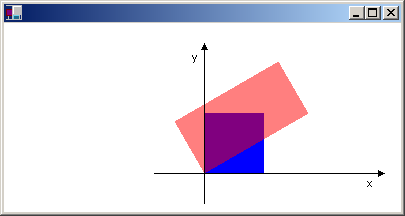
下图显示了新的坐标系统和两个矩形。